enEnglish
King flipchart.it - logo
  • Choose your KING
  • Accessories
    • KING Flipchart’s bags
    • Refill Paper Pads
    • Magnum Size Markers
  • Clients using KING
  • Testimonials
  • Info
    • What’s KING Flipchart?
    • The team of KING flipchart
    • History of KING flipchart
    • KING Flipchart Manifesto
    • FAQ
    • Contacts
  • Blog
Product has been added to your cart.

Why Trial Lawyers Still Use Flipcharts in Court — And Why Standard Office Boards Are Not Enough

A flipchart in court can do something uniquely powerful: it keeps the central idea of the case visible.

In court, the strongest argument is not always the one the jury hears once.

It is often the one the jury can still see.

That is why flipcharts and physical boards still matter in modern trial work.
Even in courtrooms equipped with screens, slides, trial presentation software, and digital exhibits, a physical board can do something uniquely powerful: it can keep the central idea of the case visible.

For trial lawyers, this is not a small detail.
Jurors must absorb facts, timelines, testimony, expert opinions, damages, and competing narratives.
The attorney’s job is not only to present evidence.
The attorney’s job is to make the case understandable, memorable, and connected to the verdict.

A flipchart can help.

But a standard office flipchart is often not enough for a serious courtroom presentation.

KING Flipchart belongs in a different category: a large-format, stable, foldable, professional visual presentation tool designed for people who need to communicate with authority in front of an audience.

For trial lawyers, that audience may be a jury.

Jurors Remember What Remains Visible

Digital slides are useful, but they usually disappear.

A slide appears, makes its point, and is replaced by the next image.
A document is displayed, enlarged, discussed, and then removed.
A phrase may be spoken powerfully, but once the lawyer moves on, the jury must hold it in memory.

A physical board works differently.

When a trial lawyer writes a phrase, timeline, rule, or damages structure on a board, that idea remains in the room.
Jurors can look back at it.
The attorney can return to it.
A witness can be examined around it.
During the closing argument, the same visible point can become the thread that connects the case.

This is the logic of visual anchoring.

A visual anchor gives jurors a fixed reference point.
It helps them remember the case as a clear story, not as a collection of disconnected facts.

Why Flipcharts Still Work in Trial Presentation

A flipchart is powerful because it can be created live.

A slide is prepared before the trial.
A board can be built in front of the jury.

That live construction matters.
When an attorney writes a key phrase during the opening statement, builds a timeline with a witness, or records admissions during cross-examination, the jury watches the argument take shape.

The board becomes part of the courtroom conversation.

It is not just displaying information.
It is helping the lawyer teach the case.

This is why physical boards still work alongside digital tools.
Screens are excellent for documents, photographs, video, medical imaging, and deposition clips.
A physical board is different. It holds meaning.

A screen can show the evidence.

A board can keep the lesson visible.

Why Standard Office Flipcharts Are Not Enough

A generic flipchart may work in a meeting room.

Court is different.

In court, the board must be readable, stable, professional, and large enough to support the structure of the argument.
A small or unstable flipchart can weaken the presentation.
If the writing is too small, jurors struggle to read it.
If the board looks fragile, the visual authority of the presentation suffers.
If the surface is too narrow, timelines and case themes become compressed.

In high-stakes litigation, the tool should not distract from the argument.

It should support it.

This is where KING Flipchart is different.

KING offers a much larger writing surface than a standard office flipchart, with a horizontal format that is especially useful for timelines, accident sequences, liability chains, damages narratives, and trial themes.
It gives the attorney room to write clearly and organize the case without forcing complex ideas into a small vertical space.

A standard flipchart is for notes.

KING Flipchart is for serious presentations.

The Advantage of a Large Board That Folds Small

One of the most important advantages of KING Flipchart is that it combines courtroom presence with practical portability.

When open, it offers one of the largest professional flipchart surfaces available.
When closed, it becomes compact, foldable, and easy to transport.

This matters for trial lawyers.

A large board is useful only if it can actually be brought where it is needed.
KING Flipchart folds down quickly, travels in essential and elegant carrying bags, and can be set up without tools.

That means a legal team can prepare the pad in the office, transport the board to court, and set it up ready to use once inside the courtroom.

The attorney does not need a complicated installation.
No tools.
No slow assembly.
No improvised setup.

Open it.
Position it.
Present.

For lawyers moving between office, mediation, trial prep, court, workshops, and strategy sessions, this is not just convenience.
It is part of the professional value of the tool.

KING Flipchart is at the same time extremely large when open and surprisingly compact when closed.

That combination is rare.

Why Size and Stability Matter in Court

Size affects clarity.

A large surface allows the attorney to write bigger, separate ideas more clearly, and build the case visually without crowding the page.

Stability affects authority.

If the board shakes, leans, or feels fragile, the attorney has to fight the tool.
That interrupts the flow of the presentation.
A stable board lets the lawyer focus on the jury, the witness, and the argument.

In a serious courtroom presentation, the physical tool should feel intentional.

It should match the importance of the case.

That is why size, stability, portability, and professional presence are not cosmetic details. They are strategic features.

How Trial Lawyers Can Use KING Flipchart

KING Flipchart can support different phases of trial advocacy.

During the opening statement, it can hold the central theme of the case.

During witness examination, it can help organize technical testimony.

During cross-examination, it can make admissions or contradictions visible.

During the closing argument, it can become the roadmap that connects evidence to responsibility and damages.

It can also be used before trial: in legal strategy sessions, mediation preparation, witness preparation, mock trials, and trial workshops.

The board does not replace the lawyer.

It supports the lawyer.

It gives the argument a visible structure.

A Real Example of KING Flipchart Used in Trial

The strategic value of physical boards is not just theory.

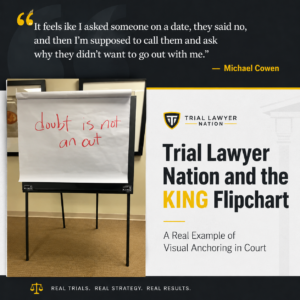
For a real-world example, read our related article: Trial Lawyer Nation and the KING Flipchart: A Real Example of Visual Anchoring in Court

That article analyzes a Trial Lawyer Nation post-trial discussion where Michael Cowen described using a KING Flipchart as part of a courtroom presentation strategy.

The article explains the principle and shows the principle in action.

Final Thought

A courtroom is a place where memory matters.

Jurors must remember what happened, why it matters, who was responsible, and what the evidence proves.

Digital tools can show the evidence.

A physical board can keep the key idea visible.

That is why trial lawyers still use flipcharts in court.

And that is why, for high-stakes litigation, an ordinary office board is often not enough.

Explore KING Flipchart for U.S. Trial Lawyers

KING Flipchart is a premium large-format, foldable presentation board designed in Italy and shipped worldwide.

For plaintiff attorneys, trucking accident lawyers, mass tort teams, product liability firms, and trial lawyers who need a stable, professional, highly visible physical surface, KING Flipchart offers a serious alternative to ordinary office flipcharts.

Prepare it in the office.
Carry it with elegance.
Set it up quickly in court.
Use it to keep your most important argument visible.

GET YOUR KING FLIPCHART

Editorial illustration of a KING Flipchart used as a flipchart in court for trial lawyers.

Ultimi articoli dal Blog

Alex Hormozi using a KING Flipchart during a business training presentation

Alex Hormozi Uses KING Flipchart for Business Ideas

Grant Cardone speaking on stage beside a large KING Flipchart during a training event.

Whiteboard for Videos: Why Hormozi, Brunson and Cardone Use a Physical Board

llustrazione fumettistica di Tiziana al telefono con un ufficio americano, ispirata alla telefonata a Robbins Research International per KING Flipchart.

The Call to Tony Robbins: “Your Flipchart Paper Sucks”

Alex Hormozi Uses KING Flipchart for Business Ideas
Trial Lawyer Nation and the KING Flipchart: A Real Example of Visual Anchoring in Court

CONTACTS

[email protected]
+39 370 304 9754
+39 328 976 6697

SECURE PAYMENTS

KING Flipchart.it - secure payments

QUICK LINKS

  • FAQ
  • Terms and Conditions
  • Cookie policy
  • Privacy Policy
  • Return and refund
  • Handle the delivery
  • Secure Payment
  • Terms of Delivery
King flipchart.it

KING is the unique Flipchart expressly designed for Experts and it’s Next to the Top Ones, all over the world!
KING is exclusive: giant, foldable and portable. This is the only flipchart with the double-wide panel granting the lanscape vision.

© 2026 CENTO PER CENTO IDEA SRL
VAT: IT-10779660017 – PEC [email protected] – SDI 5RUO82D
design by Caleidoscopio Web

Manage Consent

Utilizziamo cookie per migliorare la tua esperienza sul sito. Puoi accettare, rifiutare o personalizzare le tue preferenze.

Funzionale Always active
L'archiviazione tecnica o l'accesso sono strettamente necessari al fine legittimo di consentire l'uso di un servizio specifico esplicitamente richiesto dall'abbonato o dall'utente, o al solo scopo di effettuare la trasmissione di una comunicazione su una rete di comunicazione elettronica.
Preferenze
L'archiviazione tecnica o l'accesso sono necessari per lo scopo legittimo di memorizzare le preferenze che non sono richieste dall'abbonato o dall'utente.
Statistiche
L'archiviazione tecnica o l'accesso che viene utilizzato esclusivamente per scopi statistici. L'archiviazione tecnica o l'accesso che viene utilizzato esclusivamente per scopi statistici anonimi. Senza un mandato di comparizione, una conformità volontaria da parte del vostro Fornitore di Servizi Internet, o ulteriori registrazioni da parte di terzi, le informazioni memorizzate o recuperate per questo scopo da sole non possono di solito essere utilizzate per l'identificazione.
Marketing
L'archiviazione tecnica o l'accesso sono necessari per creare profili di utenti per inviare pubblicità, o per tracciare l'utente su un sito web o su diversi siti web per scopi di marketing simili.
  • Manage options
  • Manage services
  • Manage {vendor_count} vendors
  • Read more about these purposes
View preferences
  • {title}
  • {title}
  • {title}

Accessibility

Accessibility modes

Epilepsy Safe Mode
Dampens color and removes blinks
This mode enables people with epilepsy to use the website safely by eliminating the risk of seizures that result from flashing or blinking animations and risky color combinations.
Visually Impaired Mode
Improves website's visuals
This mode adjusts the website for the convenience of users with visual impairments such as Degrading Eyesight, Tunnel Vision, Cataract, Glaucoma, and others.
Cognitive Disability Mode
Helps to focus on specific content
This mode provides different assistive options to help users with cognitive impairments such as Dyslexia, Autism, CVA, and others, to focus on the essential elements of the website more easily.
ADHD Friendly Mode
Reduces distractions and improve focus
This mode helps users with ADHD and Neurodevelopmental disorders to read, browse, and focus on the main website elements more easily while significantly reducing distractions.
Blindness Mode
Allows using the site with your screen-reader
This mode configures the website to be compatible with screen-readers such as JAWS, NVDA, VoiceOver, and TalkBack. A screen-reader is software for blind users that is installed on a computer and smartphone, and websites must be compatible with it.

Online Dictionary

    Readable Experience

    Content Scaling
    Default
    Text Magnifier
    Readable Font
    Dyslexia Friendly
    Highlight Titles
    Highlight Links
    Font Sizing
    Default
    Line Height
    Default
    Letter Spacing
    Default
    Left Aligned
    Center Aligned
    Right Aligned

    Visually Pleasing Experience

    Dark Contrast
    Light Contrast
    Monochrome
    High Contrast
    High Saturation
    Low Saturation
    Adjust Text Colors
    Adjust Title Colors
    Adjust Background Colors

    Easy Orientation

    Mute Sounds
    Hide Images
    Virtual Keyboard
    Reading Guide
    Stop Animations
    Reading Mask
    Highlight Hover
    Highlight Focus
    Big Dark Cursor
    Big Light Cursor
    Cognitive Reading
    Navigation Keys
    Voice Navigation

    KING Flipchart

    Accessibility Statement

    • www.flipchart.it
    • 4 November 2026

    Compliance status

    We firmly believe that the internet should be available and accessible to anyone, and are committed to providing a website that is accessible to the widest possible audience, regardless of circumstance and ability.

    To fulfill this, we aim to adhere as strictly as possible to the World Wide Web Consortium’s (W3C) Web Content Accessibility Guidelines 2.1 (WCAG 2.1) at the AA level. These guidelines explain how to make web content accessible to people with a wide array of disabilities. Complying with those guidelines helps us ensure that the website is accessible to all people: blind people, people with motor impairments, visual impairment, cognitive disabilities, and more.

    This website utilizes various technologies that are meant to make it as accessible as possible at all times. We utilize an accessibility interface that allows persons with specific disabilities to adjust the website’s UI (user interface) and design it to their personal needs.

    Additionally, the website utilizes an AI-based application that runs in the background and optimizes its accessibility level constantly. This application remediates the website’s HTML, adapts Its functionality and behavior for screen-readers used by the blind users, and for keyboard functions used by individuals with motor impairments.

    If you’ve found a malfunction or have ideas for improvement, we’ll be happy to hear from you. You can reach out to the website’s operators by using the following email [email protected]

    Screen-reader and keyboard navigation

    Our website implements the ARIA attributes (Accessible Rich Internet Applications) technique, alongside various different behavioral changes, to ensure blind users visiting with screen-readers are able to read, comprehend, and enjoy the website’s functions. As soon as a user with a screen-reader enters your site, they immediately receive a prompt to enter the Screen-Reader Profile so they can browse and operate your site effectively. Here’s how our website covers some of the most important screen-reader requirements, alongside console screenshots of code examples:

    1. Screen-reader optimization: we run a background process that learns the website’s components from top to bottom, to ensure ongoing compliance even when updating the website. In this process, we provide screen-readers with meaningful data using the ARIA set of attributes. For example, we provide accurate form labels; descriptions for actionable icons (social media icons, search icons, cart icons, etc.); validation guidance for form inputs; element roles such as buttons, menus, modal dialogues (popups), and others. Additionally, the background process scans all of the website’s images and provides an accurate and meaningful image-object-recognition-based description as an ALT (alternate text) tag for images that are not described. It will also extract texts that are embedded within the image, using an OCR (optical character recognition) technology. To turn on screen-reader adjustments at any time, users need only to press the Alt+1 keyboard combination. Screen-reader users also get automatic announcements to turn the Screen-reader mode on as soon as they enter the website.

      These adjustments are compatible with all popular screen readers, including JAWS and NVDA.

    2. Keyboard navigation optimization: The background process also adjusts the website’s HTML, and adds various behaviors using JavaScript code to make the website operable by the keyboard. This includes the ability to navigate the website using the Tab and Shift+Tab keys, operate dropdowns with the arrow keys, close them with Esc, trigger buttons and links using the Enter key, navigate between radio and checkbox elements using the arrow keys, and fill them in with the Spacebar or Enter key.Additionally, keyboard users will find quick-navigation and content-skip menus, available at any time by clicking Alt+1, or as the first elements of the site while navigating with the keyboard. The background process also handles triggered popups by moving the keyboard focus towards them as soon as they appear, and not allow the focus drift outside of it.

      Users can also use shortcuts such as “M” (menus), “H” (headings), “F” (forms), “B” (buttons), and “G” (graphics) to jump to specific elements.

    Disability profiles supported in our website

    • Epilepsy Safe Mode: this profile enables people with epilepsy to use the website safely by eliminating the risk of seizures that result from flashing or blinking animations and risky color combinations.
    • Visually Impaired Mode: this mode adjusts the website for the convenience of users with visual impairments such as Degrading Eyesight, Tunnel Vision, Cataract, Glaucoma, and others.
    • Cognitive Disability Mode: this mode provides different assistive options to help users with cognitive impairments such as Dyslexia, Autism, CVA, and others, to focus on the essential elements of the website more easily.
    • ADHD Friendly Mode: this mode helps users with ADHD and Neurodevelopmental disorders to read, browse, and focus on the main website elements more easily while significantly reducing distractions.
    • Blindness Mode: this mode configures the website to be compatible with screen-readers such as JAWS, NVDA, VoiceOver, and TalkBack. A screen-reader is software for blind users that is installed on a computer and smartphone, and websites must be compatible with it.
    • Keyboard Navigation Profile (Motor-Impaired): this profile enables motor-impaired persons to operate the website using the keyboard Tab, Shift+Tab, and the Enter keys. Users can also use shortcuts such as “M” (menus), “H” (headings), “F” (forms), “B” (buttons), and “G” (graphics) to jump to specific elements.

    Additional UI, design, and readability adjustments

    1. Font adjustments – users, can increase and decrease its size, change its family (type), adjust the spacing, alignment, line height, and more.
    2. Color adjustments – users can select various color contrast profiles such as light, dark, inverted, and monochrome. Additionally, users can swap color schemes of titles, texts, and backgrounds, with over 7 different coloring options.
    3. Animations – epileptic users can stop all running animations with the click of a button. Animations controlled by the interface include videos, GIFs, and CSS flashing transitions.
    4. Content highlighting – users can choose to emphasize important elements such as links and titles. They can also choose to highlight focused or hovered elements only.
    5. Audio muting – users with hearing devices may experience headaches or other issues due to automatic audio playing. This option lets users mute the entire website instantly.
    6. Cognitive disorders – we utilize a search engine that is linked to Wikipedia and Wiktionary, allowing people with cognitive disorders to decipher meanings of phrases, initials, slang, and others.
    7. Additional functions – we provide users the option to change cursor color and size, use a printing mode, enable a virtual keyboard, and many other functions.

    Browser and assistive technology compatibility

    We aim to support the widest array of browsers and assistive technologies as possible, so our users can choose the best fitting tools for them, with as few limitations as possible. Therefore, we have worked very hard to be able to support all major systems that comprise over 95% of the user market share including Google Chrome, Mozilla Firefox, Apple Safari, Opera and Microsoft Edge, JAWS and NVDA (screen readers), both for Windows and for MAC users.

    Notes, comments, and feedback

    Despite our very best efforts to allow anybody to adjust the website to their needs, there may still be pages or sections that are not fully accessible, are in the process of becoming accessible, or are lacking an adequate technological solution to make them accessible. Still, we are continually improving our accessibility, adding, updating and improving its options and features, and developing and adopting new technologies. All this is meant to reach the optimal level of accessibility, following technological advancements. For any assistance, please reach out to [email protected]